
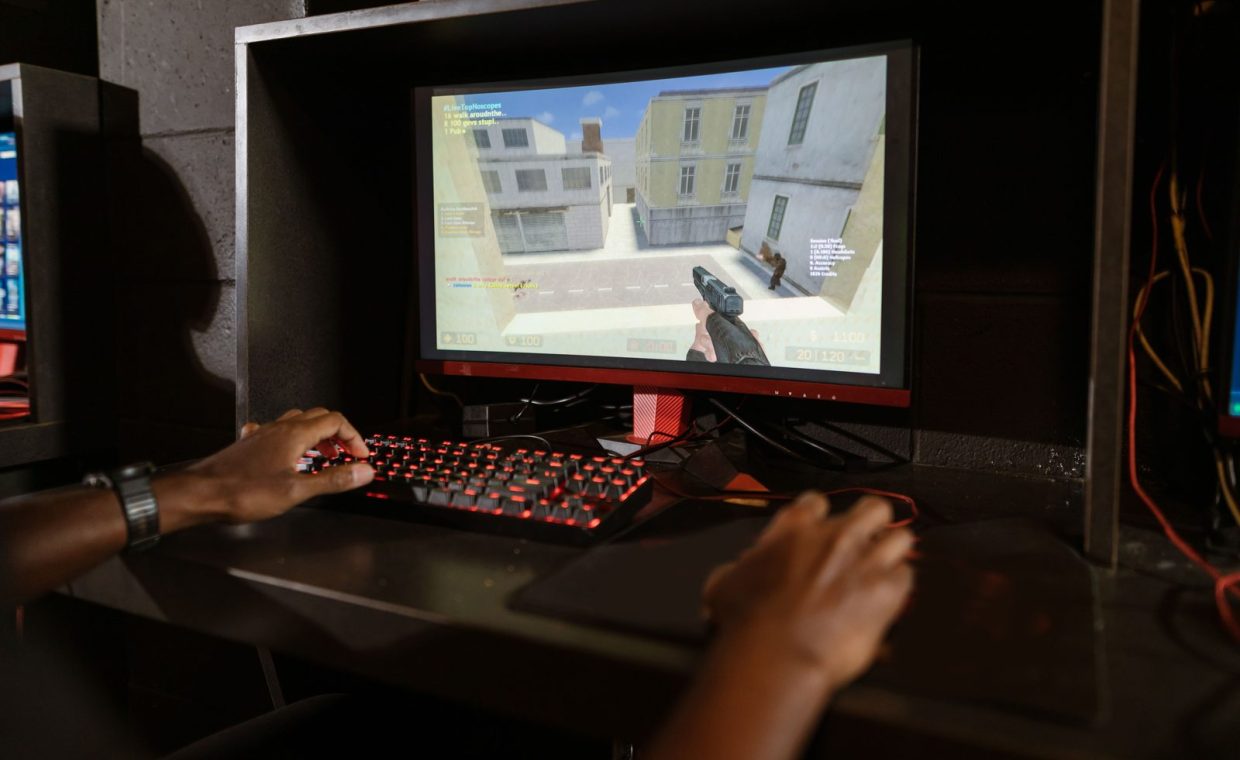
My friend Devi has a laptop that is older than some of the people she queues with in Valorant. It hitches during smoke spam, the fans sound like a hairdryer, and she had basically accepted that 45 frames was her life now. Then we spent one rainy afternoon poking at settings instead of throwing money at the problem.
By the end of it she was holding a steady 90-plus in ranked, and the only thing it cost was a Saturday. No new GPU, no shady "FPS booster" download, just settings that were already sitting there waiting to be flipped.
That experience is the whole spirit here. Aging rigs have more headroom than people assume, and most of it is locked behind defaults nobody ever changed. Here are ten free moves, roughly easiest to nerdiest, that squeeze more frames out of what you own.
1. Update Your Graphics Drivers (Seriously, Do This First)
I know, I know. Telling someone to update their drivers feels like telling them to turn it off and on again. But stale drivers are the single most common reason a capable card underperforms, and the fix is genuinely free.
Both Nvidia and AMD ship game-ready driver updates that can add a real chunk of performance to specific titles around launch. A clean update sometimes claws back 5-15 percent in a game that was running rough for no obvious reason.
If a fresh driver makes things worse (it happens), grab the previous version from the manufacturer's site and roll back. Newer is not always faster for your exact card.
2. Match Your Resolution and Refresh Rate to Reality
A surprising number of people game at the wrong resolution and never notice. Windows updates, monitor swaps, and Steam shenanigans can quietly leave you rendering at something your panel cannot even show.
Check your display settings and confirm you are running your monitor's native resolution at its full refresh rate. If you bought a 144Hz panel and Windows defaulted you to 60Hz, you have been leaving frames on the table this entire time.
On an older GPU, dropping from 1440p to 1080p is also the biggest single free lever you have. Fewer pixels to draw means dramatically more frames, and a good 1080p image still looks great in a fast shooter.
3. Turn Off the Settings That Cost the Most for the Least
Not all graphics options are created equal. Some sip performance, others gulp it. The trick is killing the expensive ones you barely see while keeping the cheap ones that make a game look good.
The usual suspects worth lowering or disabling on a weak rig: shadows, ambient occlusion, volumetric fog, and anti-aliasing. These hammer the GPU hard and often look nearly identical two steps down.
| Setting | Performance cost | Visual impact |
|---|---|---|
| Shadow quality | High | Low at medium |
| Anti-aliasing | High | Subtle below 4K |
| Texture quality | Low (if you have VRAM) | High, keep it up |
| Ambient occlusion | Medium to high | Easy to miss off |
Textures are the exception. As long as you have enough VRAM, high textures barely cost frames and do more for how a game feels than almost anything else. Keep those up, cut everywhere else.
4. Clean Up What Windows Is Doing Behind Your Back
Your frames are not just fighting the game. They are fighting Discord overlays, a browser with forty tabs, cloud sync, and whatever launcher decided to update itself mid-match.
Close background apps before you play, and dig into startup programs so half of them stop launching with your PC. This is where a proper pass on how you optimize Windows for gaming pays off, because the OS ships with a pile of features you never asked for.
Game Mode, hardware-accelerated GPU scheduling, and turning off unnecessary visual effects are all free toggles. None of them are magic alone, but stacked together they add up on a tight system.
5. Set Your Power Plan to Actually Use Your Hardware
This one quietly wrecks laptop performance especially. Windows loves to default to a balanced or power-saving plan that throttles your CPU to keep things cool and quiet.
Switch to the High Performance power plan in your settings. On a gaming laptop, also make sure you are plugged in, because most of them aggressively limit performance on battery to the point where games become unplayable.
High Performance runs hotter. If your machine already struggles with heat, sort out cooling first or you will trade frames now for thermal throttling ten minutes later.
6. Fight the Heat, Because Hot Chips Slow Themselves Down
Here is the thing nobody tells you about old rigs. When a CPU or GPU gets too hot, it deliberately slows down to protect itself. That is thermal throttling, and it turns a fine afternoon of Elden Ring into a stuttery slideshow.
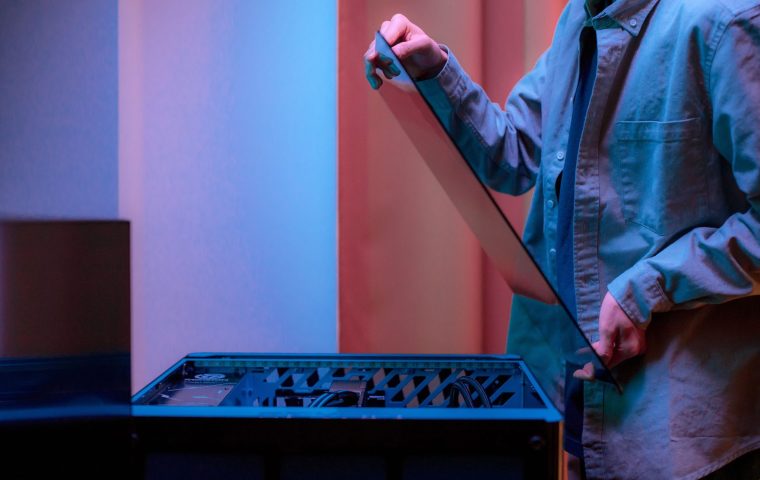
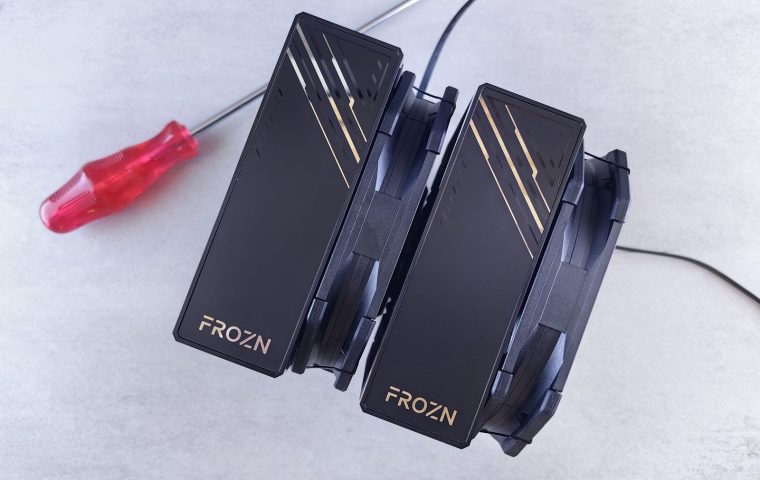
Blow the dust out of your fans and vents with compressed air. Dusty intakes are the number one free performance killer in machines more than a couple years old, and you would be shocked how much grime hides in there.
Airflow inside the case matters too. Tangled wiring blocks the very air your fans are trying to move, so a quick read on common cable management mistakes and how to fix them can drop your temps a few degrees for zero dollars.
7. Cap Your Frame Rate (Yes, On Purpose)
This sounds backwards. Why would limiting frames ever help? Because an uncapped game on a weak rig produces wild swings, and those swings are what your eyes read as stutter.
A steady 60 feels far smoother than a jittery range that bounces between 50 and 110. Capping a few frames below what your monitor refreshes also reduces input lag in many setups, which competitive players obsess over for good reason.
You can set a cap in most games, in your GPU control panel, or with built-in tools. Lock it where your rig holds the number comfortably and let consistency do the rest.
8. Borrow Free Frames From Upscaling Tech
Modern upscalers like Nvidia's DLSS, AMD's FSR, and Intel's XeSS are basically free performance for anyone whose card supports them. They render the game at a lower internal resolution, then smartly reconstruct it back up.
FSR in particular is open and works across a wide range of hardware, including some genuinely old cards, which makes it a gift for budget rigs. Turn it on, pick the Quality preset first, and only drop lower if you still need more headroom.
Even older GPUs that miss out on DLSS can usually run FSR, and many games now ship it by default. Check the graphics menu before you assume your card is too old to benefit.
9. Make Sure the Game Is Even Using Your Good GPU
If your laptop or desktop has both integrated graphics and a dedicated card, Windows sometimes runs games on the weak integrated chip without telling you. It is the silent frame thief of the laptop world.
Open Graphics settings in Windows, find your game, and force it to use the high-performance GPU. I have watched this single change double someone's frame rate in Baldur's Gate 3 because the game had been quietly running on the wrong chip the whole time.
While you are in there, set your preferred GPU as the default for new apps so you never have to think about it again.
10. Free Up Disk Space and Verify Your Files
A nearly full drive does not just slow loading. It can cause stutters and texture pop-in as the game struggles to stream assets in time, especially on older spinning hard drives.
Clear out games you have not touched in months, empty the recycle bin, and aim to keep a healthy slice of your drive free. If a specific game stutters, verify its files through Steam or your launcher, since a single corrupted file can tank performance.
None of this is glamorous, but a tidy drive and clean install files quietly fix more stutter problems than people expect. It is the digital equivalent of dusting your fans.
Update drivers, match resolution and refresh rate, cut expensive settings, kill background apps, fix your power plan, clear dust, cap frames, enable upscaling, force the right GPU, and free up disk space. Stack a few and the difference is real.
Once your frames are stable, the next thing you notice is how much your other gear matters. Smooth audio cues suddenly feel readable, which is why people who chase competitive consistency often pair these tweaks with one of the best gaming headsets for every budget to actually hear the footsteps they can now react to.
Do free FPS booster programs actually work?
Most are useless at best and bundled with junk at worst. Everything a legit "booster" does, closing background apps and tweaking settings, you can do yourself for free and with far more control. Skip the downloads.
How much performance can these tweaks realistically add?
It varies wildly by game and hardware, but stacking several of these can take a rough rig from unplayable to comfortable. Resolution, settings cuts, and upscaling together often deliver the biggest jumps on aging machines.
Will lowering settings make my game look bad?
Not if you cut smartly. Keep textures high, drop shadows and anti-aliasing, and most games still look great. A smooth, slightly simpler image beats a gorgeous slideshow every time.
Start with drivers and the GPU check, since those two fix the most problems fastest, then work down the list until your frames feel right. The fun part is that none of it costs a thing, so there is no reason not to experiment. Go reclaim some frames, and I hope your fans get a little quieter in the process.