
My buddy Reza spent roughly $600 on a second 1440p panel before he had even checked which ports his graphics card actually had. The monitor showed up, he plugged it in, and one screen sat there black for two days because his GPU only had one free DisplayPort and he was trying to feed the other one through a dead HDMI passthrough on the motherboard. Classic.
That is the thing nobody tells you about dual monitors. The hard part is almost never the gaming. It is the cables, the arrangement, and the dozen tiny Windows settings that decide whether your second screen helps you or just sits there fighting you while you alt-tab out of Elden Ring at the worst possible moment.
So let us wire two screens correctly, arrange them so they feel like one workspace, and avoid the cheap mistakes that quietly tank your frame rate. You do not need matching panels and you do not need to spend a fortune.
Check What Your GPU Can Actually Drive
Before you buy anything, look at the back of your graphics card, not your motherboard. On a gaming PC, the monitors plug into the GPU. The motherboard ports usually only work if you have integrated graphics enabled, and feeding a gaming monitor off integrated graphics is how you get stutter and confusion.
Most modern GPUs give you three DisplayPort outputs and one HDMI. That is plenty for two screens. Count your free outputs first, then count your monitor inputs, and make sure the two sets overlap.
If you are still deciding between a console and a tower, dual monitors are a PC-only luxury for the most part. Sort out the platform question first by reading whether a gaming PC or a console fits how you actually play, then come back here once you have a tower with real GPU outputs.
One detail people miss: your two monitors do not need the same port type. One can run DisplayPort, the other HDMI. They just both need to land on the GPU.
Pick the Right Cable (and Skip the Adapter Tax)
This is where the cheap-but-correct mindset pays off. DisplayPort is your default for the gaming monitor because it handles high refresh rates and variable refresh (G-Sync or FreeSync) more reliably than older HDMI versions. A solid DisplayPort cable runs around $10 to $15, and that is the whole expense.
Use HDMI for your secondary screen, the one holding Discord, a wiki, or a YouTube guide. That panel does not need 240Hz, so it does not need the premium connection.
Active adapters (DisplayPort to HDMI, USB-C to DisplayPort) are where weird problems live: black screens, refresh rates capped at 60Hz, random signal drops. If you can avoid an adapter by matching native ports, do it. A correct $12 cable beats a flaky $30 adapter every single time.
One more thing. Cheap no-name cables are usually fine for the secondary screen, but for your high-refresh gaming panel, buy a cable that explicitly lists the spec you need (DisplayPort 1.4 for 1440p at high Hz, for example). A vague "supports 4K" label is not the same promise.
Physically Place the Two Screens
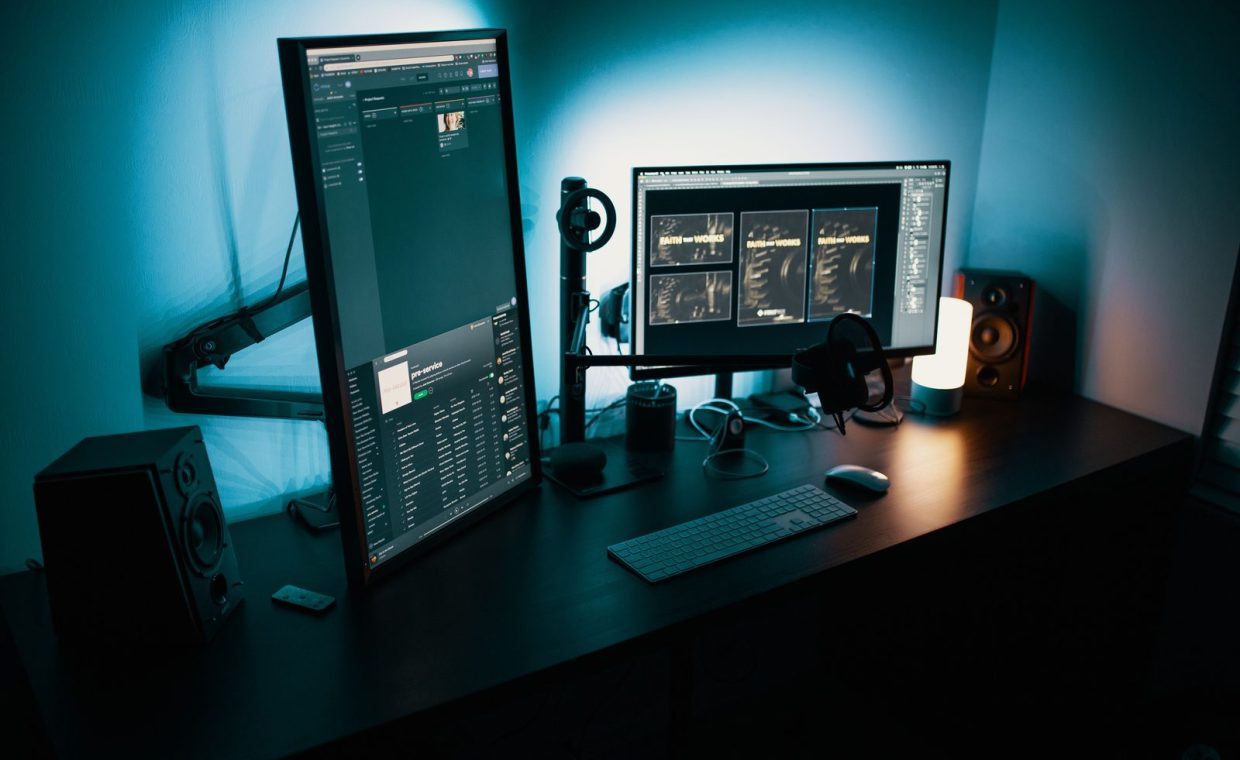
Plug both in, but before you touch any software, get the physical layout right. Your main gaming monitor goes dead center, squared to your face. The second screen sits to one side, angled slightly toward you so you can glance at it without craning your neck for ten hours.
Height matters more than people expect. Try to get the tops of both panels roughly level, even if the monitors are different sizes. Mismatched heights make your eyes constantly readjust, and after a long session that turns into a real headache.
A single VESA monitor arm, often around $30 to $40, fixes height, tilt, and the desk clutter from two chunky stands at once. It is the highest-value accessory in a dual setup, and it frees up surface space for everything else.
If you are building the desk side of this out too, the layout ideas in our roundup of battlestation desk setups that actually work will save you from the trap of cramming two big panels onto a tiny surface.
Tell Windows How the Screens Are Arranged
Now the software. Right-click the desktop, open Display settings, and you will see two numbered rectangles. Drag them so their on-screen positions match where the monitors physically sit on your desk. If your second screen is on the right, the box should be on the right.
This step decides where your mouse crosses between screens. Get it wrong and your cursor will leap off the correct edge and reappear somewhere absurd, which gets old fast in the middle of a match.
While you are here, set your main gaming panel as the primary display. That tells games and the taskbar where home is.
Match each monitor to its real refresh rate
Scroll down to Advanced display settings and check the refresh rate per monitor. Windows loves to default a brand-new high-refresh panel to a sad 60Hz. Bump your gaming monitor up to its full rating (144Hz, 165Hz, whatever it supports). This is free performance you already paid for, so do not leave it on the table.
Lock Down Scaling and Resolution Per Screen
If your two monitors are different sizes or sharpness, text and windows can look mismatched as you drag them across. In Display settings, set each screen to its native resolution, then adjust the scaling percentage individually so text is readable on both.
A common pairing is a 27-inch 1440p main screen at 100 percent scaling next to a smaller 1080p side panel at 100 or 125 percent. Tweak until a Discord window looks the same size in your head whether it is left or right.
Pairing a high-refresh gaming panel with a plain 60Hz second screen is totally fine and very common. On some setups, playing a video on the 60Hz screen can introduce a little hitching on the main one. If you ever feel that, it is a known quirk, not a broken monitor.
Stop the Second Monitor From Eating Your Frame Rate
Here is the part the builder in me cares about most. A second screen can cost you frames if you let it. The fix is mostly about what you run on it.
Keep the second monitor light during competitive play. A static Discord window or a paused browser tab costs almost nothing. A 4K YouTube video, a busy Twitch stream, and a Spotify visualizer all running at once will pull GPU and memory bandwidth away from your game.
- Run the game borderless windowed or fullscreen. Borderless makes alt-tabbing instant. True fullscreen can squeeze out a few more frames in demanding titles like Baldur's Gate 3. Try both and keep what feels better.
- Pause heavy media before a ranked Valorant session. Background video is the most common hidden frame thief.
- Do not run a game on each monitor at once unless you genuinely have GPU headroom. Two 3D games is a lot to ask.
The good news: for normal multitasking, a guide on one screen and Stardew Valley on the other, the frame cost is basically nothing.
Set It Up for Real Multitasking and Streaming
Once the hardware is sane, the workflow is the payoff. Snap windows with the Windows key plus the arrow keys to tile chat, a build guide, and a browser without dragging anything by hand. Put the stuff you glance at (chat, stats, music) on the side screen and keep the game uninterrupted on the main.
If streaming is the goal, this layout is exactly what you want: game on the primary, OBS and chat on the secondary so you are never alt-tabbing live. The full picture is in our walkthrough on getting your first stream off the ground, and a second monitor makes nearly every step in it easier.
Plug both monitors into the GPU, use DisplayPort for the gaming screen and HDMI for the side one, match the boxes in Windows to your real desk layout, crank each panel to its true refresh rate, and keep heavy media off the second screen during competitive play. Total cost beyond the monitor: a good cable and maybe a monitor arm.
Do both monitors need to be the same brand or resolution?
No. Mixing a 1440p main panel with a 1080p side screen is completely normal and a great way to save money. Just set each one to its native resolution and adjust scaling so windows feel consistent when you drag them across.
Will a second monitor lower my FPS in games?
For light tasks like chat or a wiki, the hit is negligible. The frame drops people blame on the second screen almost always come from running heavy video or a second 3D app on it. Pause that media during competitive matches and you are fine.
My second monitor is stuck at 60Hz. How do I fix it?
Check two things. First, confirm you are using a cable and port that support higher refresh (DisplayPort is safest for the gaming panel). Second, go into Advanced display settings in Windows and manually select the higher refresh rate, since Windows often defaults a new panel to 60Hz.
Get the cables and the Windows layout right once, and a dual setup quietly disappears into the background where it belongs. You stop thinking about it and just play, with your guide, your chat, and your music sitting exactly where your eyes expect them. Now go win something.