
A friend of mine almost quit Elden Ring three hours in. Not because of a boss, but because the default subtitles were tiny gray text on a foggy gray swamp, and he kept missing the one NPC line that pointed him toward Stormveil. He thought he was bad at the game. He was actually fighting the menu.
One trip into the settings later, with subtitle size cranked up and a background box turned on, he was fine. Better than fine, honestly. He finished the run.
That little story is the whole point here. Accessibility settings are not a separate "easy mode" tucked in a corner. They are a set of comfort and support options that most players never open, and a surprising number of them help everyone, not just folks with a specific need. Let me walk you through the ones worth knowing, concept by concept.
Subtitles And Captions Are Not Just For Quiet Rooms
Subtitles show spoken dialogue as text. Full captions go further, describing sounds like "door creaks" or "footsteps approaching from the left." That second part matters more than people expect.
Concrete example: in a horror game like Resident Evil, directional captions can tell you an enemy is behind you before you ever hear it through cheap laptop speakers. In a story-heavy game like Baldur's Gate 3, larger subtitles mean you actually read the writing instead of squinting and button-mashing past it.
Look for subtitle size, a background opacity slider, and a speaker name toggle. Turning on the background box alone fixes the "text disappears against bright scenery" problem in seconds.
The common myth is that subtitles are only for players who are deaf or hard of hearing. In reality, tons of people game late at night with the volume down, play on a noisy commute with a Steam Deck, or just process information better when they can read along. It is one of the most universally useful toggles in any menu.
Colorblind Modes Do More Than Swap Colors
Roughly one in twelve men has some form of color vision deficiency, so this is not a niche feature. A colorblind mode adjusts the palette so that information carried by color, like red enemies versus green teammates, stays readable.
Valorant and Overwatch both let you change enemy and ally outline colors. That sounds cosmetic until you realize the entire game can hinge on telling friend from foe in a fraction of a second. Swapping the default red and green for, say, blue and orange can genuinely raise your win rate if those defaults blurred together for you.
The myth here is that the developer's preset is automatically correct. The presets labeled for specific conditions are a starting point, not gospel. The better approach is to use any custom color pickers the game offers and trust your own eyes, then test it in an actual match before deciding it works.
Remapping And Controller Options Change Who Can Play
Button remapping lets you move actions to inputs that suit your hands. Toggle versus hold options let you tap a button once instead of holding it down, which matters enormously for anyone with limited grip strength or hand fatigue.
Here is a real scenario. Sprinting in a lot of shooters defaults to "hold L3," clicking and pinning the stick. Over a long session that wrecks your thumb. Switching sprint to a toggle, or remapping it to a bumper, turns a painful habit into a non-issue.
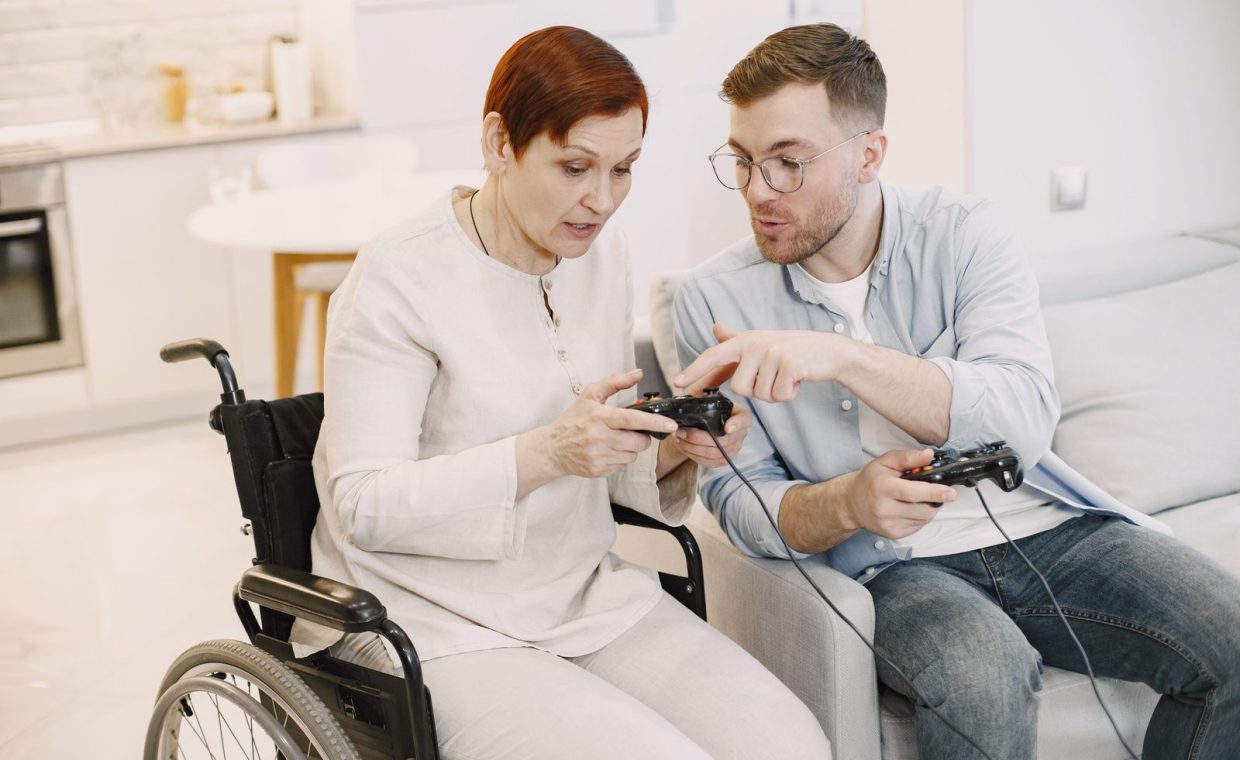
Settings only go so far. Adaptive controllers, like the ones built for one-handed or switch-based play, pair with in-game remapping to open the door for players who simply cannot use a standard pad. If you are buying new gear, check whether the game supports full remapping before you commit.
The myth is that remapping is "cheating" or only for pros chasing marginal gains. Plenty of competitive players remap, sure, but the bigger story is the player who could not finish a game at all until they moved jump off the face buttons. Comfort and capability are the same conversation.
Motion, Camera, And Visual Comfort
Motion sickness in games is real, and it is usually caused by a handful of culprits: aggressive camera shake, a narrow field of view, head bob, and motion blur. The fix is a cluster of settings that often hide under "Graphics" or "Camera" rather than "Accessibility."
Widening the field of view on PC reduces the tunnel-vision feeling that triggers nausea for many people. Killing motion blur and head bob makes fast first-person games like a modern Doom or a Call of Duty far easier on the stomach. If you have ever felt queasy twenty minutes into a shooter, this is your section.
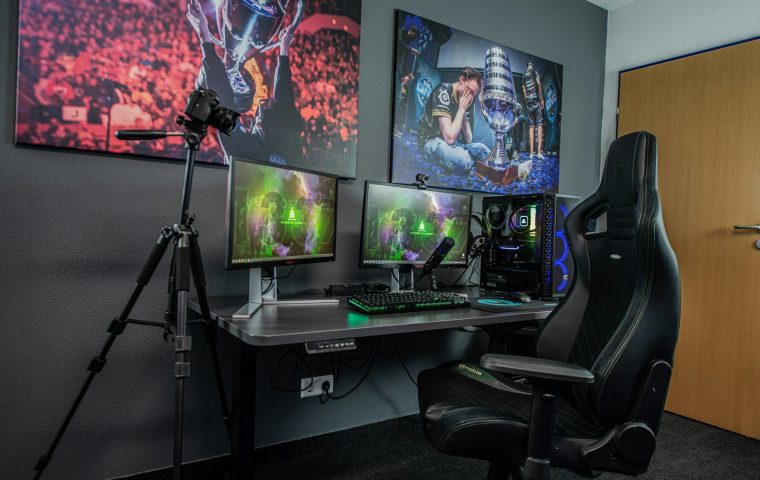
This connects to how your whole space is set up, too. A stable frame rate on a decent 1440p monitor, sitting at a comfortable distance, does as much for comfort as any single toggle. Getting your practice routine and setup dialed in means you can play longer without the headache that ends sessions early.
Some games bury an "intense flashing effects" or photosensitivity warning on the start screen and never repeat it. If you are sensitive to flashing, check for a reduced-flashing toggle before a sequence with strobing surprises you. Cyberpunk style cities and rhythm games are common offenders.
Difficulty, Assists, And Aim Help Without Shame
Difficulty and assist options are not one slider anymore. Modern games separate combat difficulty from puzzle hints, enemy aggression, time limits, and aim assist, so you can tune the exact part that frustrates you and leave the rest alone.
Celeste is the classic example. Its assist mode lets you slow the game down or add air dashes, and it explicitly tells you the intended experience while respecting your choice to change it. You can clear the hard platforming and still feel like you earned the story. Aim assist in console shooters does something similar by smoothing the input so reflexes and hand tremors matter less.
The stubborn myth is that using assists means you did not "really" beat the game. I competed at an amateur level for years, and I will say it plainly: the goal is to play the game, not to suffer correctly. A player who finishes with aim assist on saw the same credits you did. If you are climbing competitively, the same mindset of removing friction so your decisions shine is exactly what good deliberate practice habits are built on.
Reading The Menu, And UI Scaling
UI scaling resizes the on-screen interface: health bars, the minimap, ammo counts, and menu text. On a TV across the room, or on a small handheld screen, default sizes can be unreadable, and most people just live with it instead of fixing it.
Inventory and crafting screens are where this bites hardest. A cramped, tiny grid makes managing your gear a chore, and good inventory management habits only work if you can actually read the slots. Bump up the UI scale and suddenly that survival game stops feeling like an eye exam.
| Setting | What it fixes | Who benefits most |
|---|---|---|
| Subtitle background | Text lost against scenery | Everyone, especially low-vision players |
| Colorblind outlines | Friend or foe confusion | Color vision deficiency, fast-paced shooters |
| Toggle sprint or aim | Hand fatigue from holding inputs | Limited grip, long sessions |
| Field of view slider | Motion sickness, tunnel vision | Anyone prone to nausea |
| UI scaling | Unreadable small interface | TV players, handheld players |
The myth is that menu and UI options are an afterthought. They are often the difference between a game you enjoy and one you bounce off in the first hour, the way my friend almost did. A quick pass through these before you start saves real frustration later. The same goes for tone and expectations: a fresh look like a grounded take on Cyberpunk's opening hours reminds you that comfort settings shape your very first impression of a game.
Open the settings before you start. Turn on subtitle backgrounds, set colorblind outlines if you need them, swap painful holds to toggles, widen your field of view, and scale up the UI. Five minutes here makes hours of play better.
Do accessibility settings make games easier in a way that ruins the challenge?
No. Most of them, like subtitles, UI scaling, and field of view, do not touch difficulty at all. Even the ones that do, like assist modes, are opt-in and clearly labeled, so the core challenge is still there for anyone who wants it.
Where do I usually find these options in a game?
Look first for a dedicated Accessibility menu, then check Audio for subtitles, Graphics or Camera for motion and field of view, and Controls for remapping. Some comfort settings are scattered, so it is worth scrolling through every tab once.
Is aim assist considered cheating in competitive play?
On console it is standard and built into the game for everyone, so it is not cheating. In cross-play between controller and mouse there is ongoing debate, but using the assist your platform provides is simply playing the game as designed.
Spend the five minutes. I have watched too many people decide they are bad at a game when they were really just fighting an unreadable HUD or a control scheme that hurt their hands. Open the menu, poke around, and set the game up so it actually fits you. That is not lowering the bar, it is clearing the junk between you and the part you came to play.