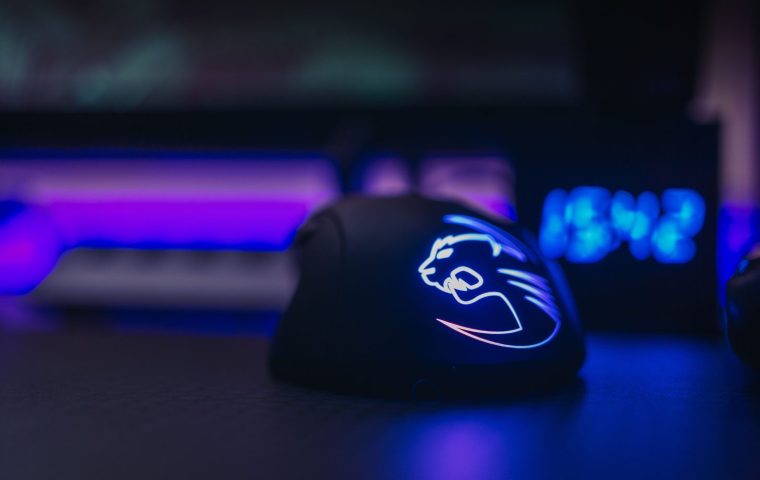

A friend of mine bought a mouse last year mostly because the box said 26,000 DPI. He cranked it to the ceiling, loaded into Valorant, and spent the next week wondering why his crosshair shot across the screen every time he flicked. He was convinced the mouse was defective.
It was not defective. He was just running a sensitivity that no professional player on Earth would touch. The number on the box was real, but it was solving a problem he did not have.
DPI is one of the most misunderstood specs in PC gaming, right up there with refresh rate and RGB. So let me walk through what actually matters for your aim, concept by concept, and where the marketing quietly wastes your attention.
What DPI Actually Measures
DPI stands for dots per inch, and it describes how far your cursor travels on screen for every inch you move the mouse on your desk. Higher DPI means more cursor movement per physical inch. That is the whole definition.
Here is the concrete version. At 400 DPI, dragging your mouse one inch moves the cursor 400 pixels. At 800 DPI, that same inch moves it 800 pixels. The mouse did not move faster, your hand did the same thing, but the software multiplied the result.
DPI is a multiplier, not a measure of quality. A 26,000 DPI sensor is not 32 times better than an 800 DPI one. It just has more headroom you will almost certainly never use.
The myth: more DPI equals better aim. In reality, most competitive players sit between 400 and 1,600 DPI and stay there for years. The extra thousands of counts are there for huge high-resolution displays and graphic design work, not for landing headshots.
Why Effective Sensitivity Is the Number That Counts
Your actual in-game speed comes from two things multiplied together: your mouse DPI and your in-game sensitivity slider. People obsess over the first and ignore that the second exists.
Say you run 800 DPI with a 0.5 in-game sens. A friend runs 400 DPI with 1.0 sens. You both move your crosshair the exact same distance per inch of desk space. The numbers look different, the feel is identical.
This combined figure is your effective DPI, sometimes shown as eDPI (DPI multiplied by in-game sensitivity). It is the only number worth comparing between two players, because it is the only one that describes real movement.
To compare your setup with a pro's, multiply DPI by in-game sens. If a Counter-Strike player lists 400 DPI and 2.0 sens, their eDPI is 800. Match that and you will move at the same speed, regardless of which DPI number you pick.
The myth: low DPI is for beginners and high DPI is for advanced players. Wrong direction entirely. The trend among serious aimers leans toward lower eDPI and bigger arm movements, because large motions are easier to repeat consistently than tiny twitches.
Low Sens Versus High Sens: Pick a Lane
Low sensitivity means you move your whole arm to turn, sweeping the mouse across most of the pad. High sensitivity means you barely flick your wrist to spin 180 degrees. Both can work, but they suit different games.
When low sens wins
Tactical shooters like Valorant and Counter-Strike reward precision over speed. You are placing crosshairs at head height and making small corrections. A lower eDPI, somewhere in the 200 to 800 range, gives you finer control for those tiny adjustments.
When higher sens makes sense
Fast arena shooters, or anything where you flick 180 degrees constantly to catch someone behind you, can justify a quicker setting. The trade is consistency. The faster you go, the more a one-millimeter hand twitch turns into a missed shot.
Switching sensitivity every few days because you watched a new streamer. Muscle memory needs weeks to settle. Pick a reasonable eDPI and leave it alone long enough for your hand to learn it. Constant tweaking is the single biggest reason people feel stuck.
The Settings That Quietly Wreck Your Aim
DPI gets all the attention, but two background settings do real damage and almost nobody checks them.
The first is mouse acceleration. With acceleration on, moving your mouse faster makes the cursor travel farther than the same slow motion would. That means the same physical flick produces a different result depending on speed, which is poison for muscle memory. Turn it off in your operating system and confirm it is off in-game too.
The second is the Windows pointer speed slider. For aiming, you want it parked at the exact middle notch, the 6th of 11 positions, so the system applies a clean 1-to-1 signal. Any other setting silently scales your mouse input before the game even sees it.
Disabling acceleration and centering the pointer slider costs nothing and takes two minutes. It will do more for your consistency than any mouse you can buy. This is the cheapest aim improvement that exists.
The myth: raw input is just a placebo. Raw input bypasses Windows pointer processing and feeds the game your sensor data directly. Turn it on wherever the option exists. It is not flashy, but it removes a layer of interference between your hand and the game.
Polling Rate and Sensor Quality: Where Money Actually Helps
Polling rate is how often your mouse reports its position to the PC, measured in hertz. 1,000 Hz means a thousand updates per second, which is the long-standing standard. Some newer mice push 4,000 or 8,000 Hz.
Here is the honest take. Going from 125 Hz to 1,000 Hz is a real, feelable improvement in smoothness. Going from 1,000 to 8,000 Hz is something most people cannot detect, and it can actually load your CPU enough to cost frames on a weaker rig. If you have been hunting for ways to keep your gaming PC running cool and quiet, dialing an extreme polling rate back to 1,000 Hz is one less thing making your system work overtime.
Sensor quality is where spending money genuinely pays off, but not the way the box implies. A good modern sensor tracks accurately without jitter or spin-out at high speed. Almost every reputable mouse from the last few years already clears that bar. You are paying for shape, weight, and a reliable sensor, not for the DPI ceiling.
A lighter mouse with a shape that fits your grip will improve your aim more than chasing spec sheet numbers. Try claw, palm, and fingertip grips before deciding. Comfort over an hour-long session beats a headline DPI figure every time.
The myth: a pricier mouse aims for you. It does not. The same way a flashy keyboard or a desk full of RGB peripherals looks great on stream without adding a single frame of skill, an expensive mouse only removes excuses. The hours you put into one stable setting are doing the real work.
How Your Monitor Changes the Math
Your resolution quietly affects how DPI feels, and this trips people up. At a higher resolution, your cursor has more pixels to cross, so the same DPI can feel slightly slower in menus and certain games.
If you are weighing a jump from 1080p to a 1440p panel, do not panic about relearning your aim. Most competitive shooters lock sensitivity to a fixed scale independent of resolution, so your in-game flicks stay consistent. The desktop cursor feel changes, the actual game aim usually does not.
Refresh rate matters more than resolution for aim, frankly. A high refresh display shows you your target sooner and makes fast tracking smoother, which lets a clean sensitivity setting shine. That is a separate purchase from your mouse, but it is the partner that makes good settings visible.
A Sane Starting Point
If you are tired of theory and just want numbers to begin with, here is a reasonable baseline for the most common games. Adjust from here based on feel, then commit.
| Game type | Suggested DPI | Rough eDPI range | Movement style |
|---|---|---|---|
| Tactical shooter (Valorant, CS) | 800 | 200-400 | Arm-driven, precise |
| Fast arena shooter | 800-1,600 | 500-1,000 | Mixed arm and wrist |
| MMO or strategy | 1,600+ | Higher is fine | Cursor speed over flicks |
Set your DPI to 800 if you are unsure, then tune the in-game slider until a single comfortable arm sweep turns you almost exactly 180 degrees. That gives you room to adjust without ever touching the DPI again.
DPI is a multiplier, not a quality grade. eDPI is the number that matters. Kill mouse acceleration, center the Windows pointer slider, enable raw input, and run 1,000 Hz polling. Then pick one eDPI and stick with it for weeks.
What DPI do most professional players use?
The large majority sit between 400 and 1,600 DPI, most commonly 800. They pair that with a low in-game sensitivity so their effective speed stays controllable. The huge DPI numbers on premium mice go almost entirely unused in competitive play.
Should I change my DPI or my in-game sensitivity?
Set a clean DPI like 800 once, then do all your fine tuning with the in-game sensitivity slider. This keeps your DPI consistent across every game while letting each title feel right. Changing both at once just makes it harder to tell what improved.
Does a higher polling rate make me aim better?
Moving up to 1,000 Hz from a low rate helps smoothness noticeably. Pushing beyond that to 4,000 or 8,000 Hz is something almost nobody can feel, and it can cost frames on a weaker PC. Stick with 1,000 Hz unless you have power to spare.
If you remember one thing, make it this: the cheapest, fastest aim upgrade is turning off acceleration and committing to a single sensitivity long enough to actually learn it. No purchase required. Give a sane eDPI a couple of weeks before you judge it, and most of the doubt you have about your aim will quietly sort itself out. Now go lock in a setting and stop touching the slider.