
My old rig sounded like a hairdryer fighting a vacuum cleaner. I noticed it most during the quiet moments in Baldur's Gate 3, those long camp conversations where the music goes soft and you lean in to hear what Astarion is muttering. Instead I got a wall of fan whine, rising and falling like the PC was breathing through a straw.
For some people that noise is background. For me, and maybe for you, it sits right at the front of the brain and refuses to leave. A loud machine makes a calm game feel stressful, and it makes late-night sessions impossible if anyone else is asleep nearby.
The good news is that a quiet PC is not a slower PC. Almost every fix below keeps your temperatures in a safe range while shaving off the noise you actually notice. Here are the seven changes that took my desk from "jet engine" to "is it even on?"
1. Tune Your Fan Curves Before Buying Anything
The cheapest fix costs nothing. Most fans run loud because the motherboard ships with an aggressive default curve that spins them up the second your CPU twitches. You can flatten that curve in software and reclaim a lot of silence instantly.
Open your BIOS or a tool like the one that came with your motherboard, then set fans to stay low until around 60 degrees Celsius. Let them ramp gently after that instead of jumping to full speed. A modern CPU sitting at 50 degrees during a chill farming run in Stardew Valley does not need its fans screaming.
Add a short delay, sometimes called fan smoothing or step-up time, so fans do not spike during quick load bursts like opening a map. Brief spikes are the most distracting noise of all.
Spend twenty minutes here first. You may find the rest of the list is optional.
2. Swap Cheap Stock Fans for Quiet Ones
Cases and coolers often come with fans chosen for cost, not silence. Replacing two or three of them with quality models is the single best money-to-quiet ratio in this whole list, usually around $60 to $90 for a set.
Look for fans rated for high static pressure if they sit on a radiator or a restrictive filter, and look for the noise rating in decibels. A good 120mm or 140mm fan moves the same air as a cheap one while running slower and softer.
Bigger is quieter, by the way. A 140mm fan spinning slowly pushes plenty of air without the high-pitched whine that small fast fans produce. If your case fits them, use them.
3. Rethink the Case Itself
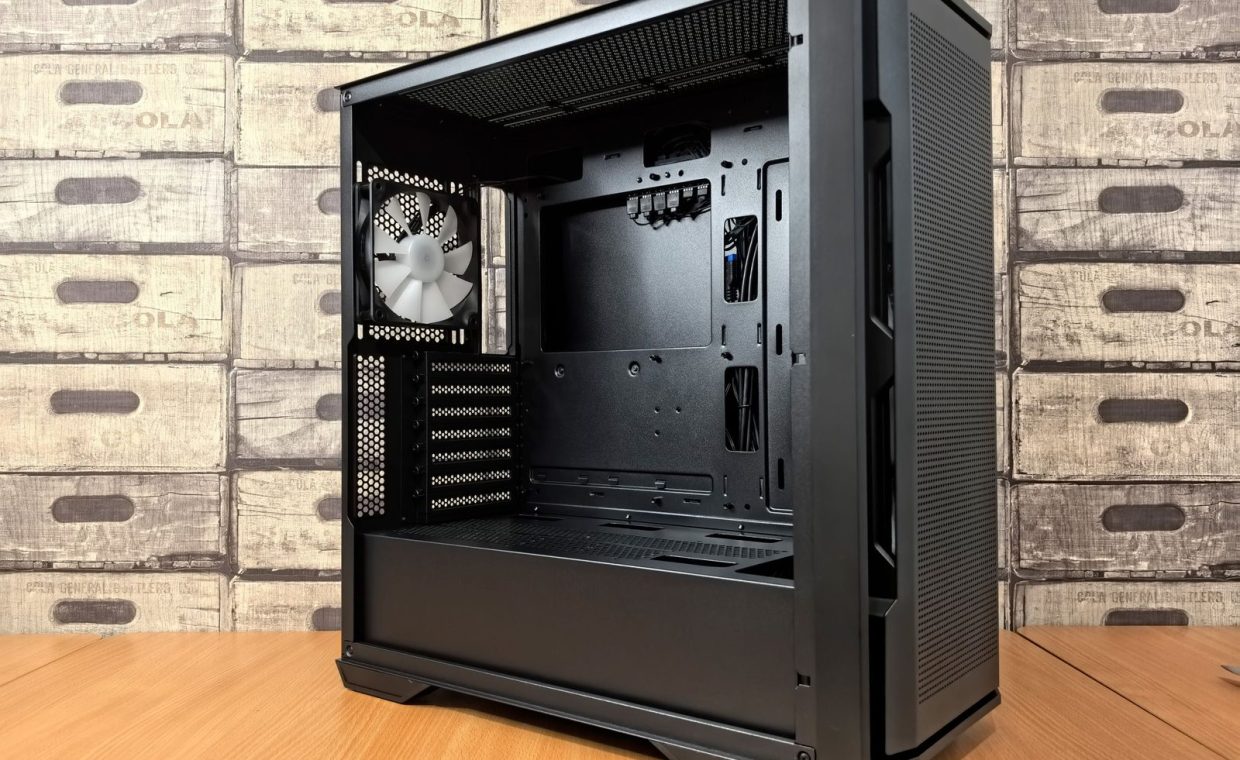
Your case is a speaker cabinet for everything inside it. A cramped, thin-metal box rattles and amplifies, while a roomy case with sound-dampening foam and good airflow swallows noise instead of broadcasting it.
If you are putting together a machine from scratch, choosing the right enclosure early saves headaches later. Our walkthrough on how to build your first gaming PC step by step covers picking a case that balances airflow and quiet, which matters more than RGB lighting ever will.
Heavily insulated "silent" cases can trap heat and force fans to work harder, which is louder in the end. A mesh-front case with smooth airflow often runs quieter overall because the fans never have to panic.
You do not always need a new case. But if yours is a steel shoebox from years ago, an upgrade can be transformative.
4. Upgrade the CPU Cooler
The stock cooler that ships with many CPUs is functional and loud. A larger air cooler or a 240mm liquid cooler gives you far more surface area, which means the fans can spin slowly and still keep temperatures down.
A big tower air cooler is my default recommendation for quiet builds. There is no pump to hum, fewer parts to fail, and a good one keeps a mainstream CPU cool during a long Elden Ring session without ever getting loud.
If you go liquid, pick a model known for a quiet pump. The fans on a radiator can run gently, but a buzzy pump will haunt you at 2am no matter how slow the fans are.
5. Tame Your GPU, the Usual Loudest Suspect
When a game gets demanding, the graphics card is almost always the part that gets loud first. Modern GPUs ramp their fans hard under load, and in a fast shooter like Valorant they can be the only thing you hear between rounds.
Two fixes help here. First, set a custom GPU fan curve so the card stays quiet until it genuinely needs cooling. Second, cap your frame rate. There is no reason to render 400 frames per second on a 144Hz monitor, and that wasted work generates real heat and noise.
Enable a frame rate limit a few frames below your monitor's refresh rate, or turn on the in-game cap. Less wasted GPU effort means cooler, quieter cards and steadier frame times. It is the same logic behind why understanding settings matters, similar to how mouse DPI and sensitivity shape your aim more than raw hardware does.
A mild undervolt is the advanced move. It lowers the power and heat a GPU produces with little or no performance loss, but go slow and test for stability.
6. Kill Vibration and Coil Whine
Not all PC noise is fans. A surprising amount is vibration, parts buzzing against the case, and that electric squeal called coil whine that comes from components under load.
Start with the easy stuff. Make sure every screw is snug, use the rubber grommets that came with your case, and put the whole tower on a soft mat or a foam pad so vibration does not travel into your desk and amplify.
Coil whine is usually harmless and not a defect, but it can be maddening. Capping frame rates often reduces it because the component is doing less frantic work. If a brand new part whines badly under light load, that is worth a return conversation.
A loose drive or a single rattling panel can undo all your other work. Hunt these down before you blame the fans.
7. Position and Habits That Cost Nothing
Where the PC sits changes how loud it feels. A tower jammed into a closed desk cubby recirculates hot air and forces fans louder, while a tower with a few inches of breathing room on the intake side runs cooler and calmer.
Keep it off thick carpet if the intake is on the bottom, clear the air paths, and dust the filters every month or two. A clogged filter is one of the most common reasons a once-quiet PC slowly gets loud over a year.
And if your needs are light, remember you may not need a tower at all. A handheld like the Steam Deck or a tuned laptop can be near silent for many games, and our guide to optimizing a laptop for gaming shows how to get smooth, cool performance from smaller hardware.
Start free with fan curves, GPU caps, and better placement. If noise remains, spend where it counts: quiet fans, a roomy airflow case, and a generous CPU cooler. You almost never have to trade temperatures for silence.
Will quieter fan settings make my PC overheat?
Not if you do it sensibly. A flatter fan curve that ramps up after about 60 degrees keeps a modern CPU and GPU well within safe limits during gaming, since most parts are rated to run hotter than that. Watch your temperatures the first week and adjust if anything climbs too high.
Is liquid cooling quieter than air cooling?
It can be, but not automatically. A good large air cooler is often just as quiet as a liquid cooler and has no pump that can hum or buzz. Liquid wins mostly for very hot, high-end CPUs or for builders who want a cleaner look inside the case.
What is the cheapest way to make my PC quieter?
Tuning your fan curves and capping your frame rate, both of which are free. After that, putting the tower on a soft mat and giving it breathing room costs nothing and removes a lot of vibration and recirculated heat. Try those before buying any parts.
Quiet is one of those upgrades you stop noticing once you have it, which is exactly the point. Start with the free tweaks, listen for what is still bugging you, then spend only on the fix that targets it. Your next late-night run through a moody RPG should sound like the game, not the machine running it.