
A friend of mine messaged me last week in a mild panic. His PC had started sounding like a hairdryer mid-fight in Elden Ring, and the frames would suddenly tank right as a boss wound up its attack. He was convinced his graphics card was dying.
It was not dying. It was just hot, and it was hot for reasons that took us about twenty minutes to find and another half hour to fix. His case had the front panel pressed flat against a wall, and the inside looked like a dusty attic.
That story is so common it is almost a rite of passage. High temps rarely come from one dramatic failure. They come from a handful of small, fixable mistakes stacked on top of each other, and most of them cost nothing but a little time and maybe a can of compressed air.
You shoved the case into a sealed corner
This is the most common one I see, and it is the least obvious. People build a beautiful rig, then tuck it into a cubby in their desk where three sides are walls and the front is a closed door.
Your PC breathes. It pulls cool air in and pushes hot air out, and if the air around it is already warm or trapped, it just recycles its own heat. A card that should idle around 40C suddenly sits at 55C before you even launch a game.
The fix is gloriously simple. Give the case room to breathe, at least a few inches of clearance on every side that has a vent, and never block the front intake or rear exhaust.
Hold your hand behind the case while a game runs. You should feel a steady stream of warm air leaving. If it is faint or the air feels stale, your case is suffocating.
Floor placement matters too
If your tower sits directly on carpet, the bottom intake fan (the one that often feeds your power supply) is basically vacuuming up fluff. A small stand or even a couple of furniture risers lifts it off the carpet and lets air reach the vents.
You let dust quietly build a blanket
Dust is the silent temp killer. It coats your fan blades, clogs the fine fins of your cooler, and turns your radiator or heatsink into an insulated brick. I have opened cases that looked like they were lined with gray felt.
Every layer of dust traps heat that should be leaving. A cooler choked with dust can add 10-15C to your readings, and that is enough to push a card into thermal throttling, which is the stutter my friend kept feeling.
The fix is a cleaning routine. Power down, unplug, take the side panel off, and use short bursts of compressed air to clear the fans, the heatsink fins, and the bottom filter. Hold the fan blades still with a finger so they do not spin and stress the bearings.
Never use a household vacuum inside your PC. The nozzle builds static that can zap your components. Compressed air or an electric duster made for electronics is the safe call.
If you game daily in a room with pets or carpet, a light dusting every couple of months keeps things honest. Tidy spaces stay cooler longer, which is one reason I am a fan of keeping a clean, well-managed desk setup around the machine. Less clutter means less dust gets pulled inside.
Your fans are blowing the wrong way
This one trips up a surprising number of new builders. Fans have a direction, and if your intakes and exhausts are fighting each other, hot air just swirls inside instead of leaving.
Most cases want cool air coming in the front and bottom, and warm air leaving through the top and rear. When someone installs every fan facing the same way, or flips the front fans by accident, you get a pocket of hot air that never escapes.
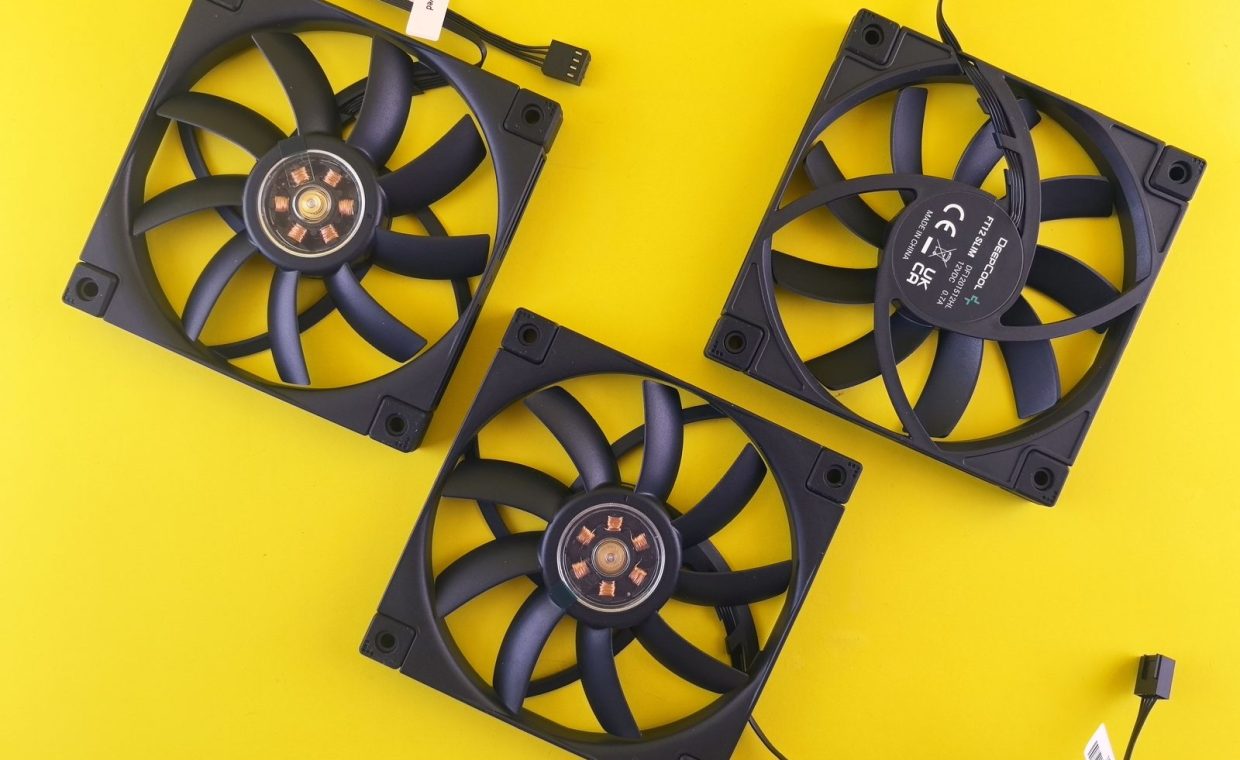
To check, look at the small arrows molded into the fan frame. One shows spin direction, the other shows airflow. Aim the front and bottom fans inward, the top and rear fans outward, and you have a clean front-to-back, bottom-to-top path.
Aim for slightly more intake than exhaust. That extra incoming air forces dust to enter through your filters instead of sneaking in through every gap, so cleaning stays easier.
You never touched the stock cooler or thermal paste
If your CPU runs hot under load but idles fine, the contact between your chip and its cooler may be the weak link. Thermal paste dries out over a few years, and a stock cooler that shipped with a budget chip may simply be outmatched once you start running demanding titles.
Reapplying paste sounds scary, but it is one of the most satisfying small upgrades you can do. A rice-grain amount of fresh paste, a clean mounting surface, and even pressure can shave several degrees off your peak temps.
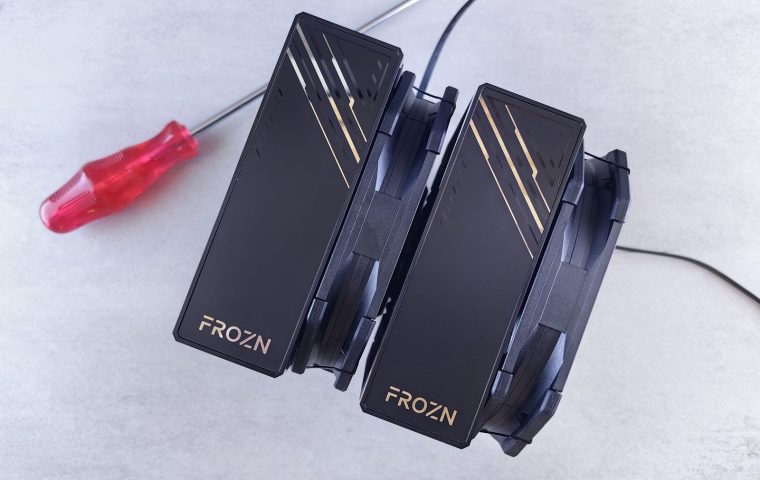
If you are still leaning on a tiny stock cooler, an aftermarket air tower or an all-in-one liquid cooler can be a real difference. I broke down the tradeoffs between the two in our guide on choosing between air and liquid cooling, because the right pick depends on your case, your budget, and how quiet you want things.
You do not always need to buy anything. A fresh dab of paste on an aging build can recover the headroom you lost without spending a cent on new hardware.
Your fan curves are set to whisper mode
Some prebuilt PCs and motherboards ship with fan profiles tuned for silence, not cooling. The fans stay slow and quiet right up until the system is already too hot, then panic and roar.
The cost here is sneaky. Your temps creep up during long sessions because the fans are not ramping early enough, and by the time they spin up, you are already throttling and losing frames in something like Valorant where every millisecond matters.
The fix lives in your motherboard software or BIOS. Find the fan control, and set a curve that ramps up a little sooner, so the fans rise gradually with temperature instead of waiting for a crisis. A slightly louder PC that stays cool always beats a silent one that throttles.
A quick note on overclocking
If you flipped on an aggressive overclock or a one-click boost mode and forgot about it, that can also be your heat source. Returning to stock clocks is a fair test. If temps drop hard, you know the overclock was asking more than your cooling could give.
You are ignoring the numbers entirely
You cannot fix what you cannot see. Plenty of people guess at their temps based on fan noise alone, which is like judging your car's speed by how loud the engine sounds.
Grab a free monitoring tool and watch your CPU and GPU temps while you play. Knowing your real numbers turns a vague worry into a clear before-and-after, so you can actually tell whether a fix worked.
Here is a rough sense of what healthy looks like for most modern gaming hardware. Treat these as friendly guideposts, not hard rules, since every chip is a little different.
| State | Comfortable CPU | Comfortable GPU |
|---|---|---|
| Idle (desktop) | Around 35-45C | Around 30-45C |
| Gaming load | Around 60-80C | Around 60-80C |
| Worry zone | Above 90C | Above 85C |
If you live in the worry zone, work back through the mistakes above. Nine times out of ten it is airflow or dust, not a dying part.
Give the case room to breathe, clear the dust, point your fans the right way, refresh old paste, set a smarter fan curve, and actually watch your temps. Those six steps fix the vast majority of overheating builds.
Is it bad if my GPU hits 80C while gaming?
Not really. Plenty of modern cards are rated to run safely into the 80s under load, and 80C during an intense session is fine. It is sustained temps above the mid 80s, or sudden frame drops from throttling, that signal something needs attention.
How often should I clean the dust out of my PC?
For most setups, a light clean every two to three months keeps temps stable. If you have pets, carpet, or a smoky room, lean toward the shorter end. A quick check of the dust filters once a month takes seconds and tells you whether a deeper clean is due.
Do laptops and handhelds overheat for the same reasons?
The principles carry over, but the fixes are gentler. A Steam Deck or gaming laptop still needs clear vents and dust-free fans, so keep the intakes unblocked and avoid gaming on a soft blanket. You cannot reseat fans easily, but a cooling stand and a little airflow go a long way.
Cooling is one of those topics that feels intimidating until you do it once, and then it just feels like basic maintenance, the same way you wipe down a favorite controller after a long session. If you have been worried your PC is on its last legs, start with the free fixes before you spend anything. And while you are tinkering, it is a good time to fuss over the rest of the kit too, like sorting out which of the best controllers deserves a spot on your cleaned-up desk. Stay curious, keep it cool, and happy gaming.